How to Fix Broken Mobile Checkout in Bókun Widgets
Cut-off buttons, unclickable fields, and layout breaks on mobile Safari and Chrome are quietly killing Bókun bookings. Here's how to diagnose and fix the most common causes.
A guest gets all the way to the final step. Card details entered, dates confirmed, one tap away from a completed booking, and then the "Confirm" button is cut off the bottom of the screen, or worse, sits there but simply will not respond to a tap. That is not a small bug. That is a completed sale walking out the door at the very last second.
Bókun checkout issues on mobile are almost always one of a small handful of causes, and all of them are fixable without touching Bókun's own code. If you are managing a checkout flow across NightsBridge, ResRequest, or Bókun and want it properly hardened for mobile, this is the same diagnostic process behind our Bókun integration work.
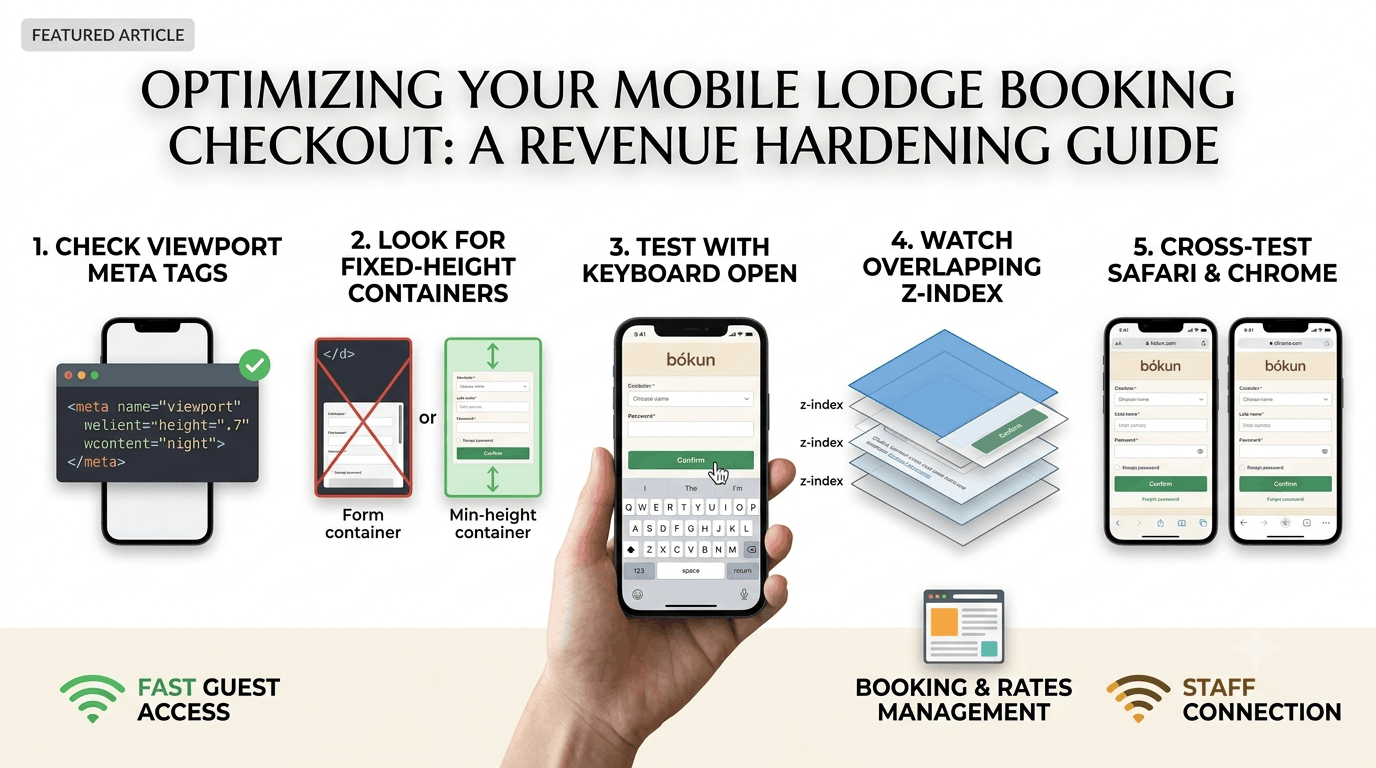
1. Check for Viewport Meta Tag Conflicts
The most common cause of a cut-off checkout button is a missing or misconfigured viewport meta tag on the page hosting the widget. Without width=device-width, initial-scale=1 correctly set, mobile browsers render the page at desktop width and then scale it down, pushing buttons off-screen or behind other elements.
2. Look for Fixed-Height Containers
Widgets embedded inside a container with a fixed pixel height, rather than a responsive minimum height, will clip content that grows taller than expected, exactly what happens when a mobile keyboard opens and shrinks the visible viewport during card entry. Switch fixed heights to min-height with overflow allowed.
3. Test With the On-Screen Keyboard Actually Open
Most checkout bugs only appear once a mobile keyboard is on screen, shrinking available vertical space. Testing a checkout flow with the keyboard closed will hide exactly the bug your guests are hitting. Always test by actually tapping into a form field and confirming the "Confirm" button remains visible and tappable.
4. Watch for Overlapping Z-Index Layers
An unclickable button that is visibly present usually means another element, a cookie banner, a sticky header, or a promotional overlay, is sitting on top of it invisibly. Audit your page's stacking order specifically around the checkout area, not just visually but by inspecting the DOM.
5. Cross-Test Safari and Chrome Separately
Mobile Safari and mobile Chrome handle certain CSS properties, particularly around fixed positioning and viewport units, differently enough that a fix confirmed on one will not always carry over to the other. Test both before calling a fix complete.
A checkout that works is invisible. A checkout that breaks is the only thing your guest remembers about the entire booking experience. Given how close to the finish line these bugs sit, they deserve to be the first thing you test, not the last.
LET’S TALK
Have a project in mind after reading this? Send a brief and I usually reply within 24 to 48 hours.